

For questions or support, please reach out to support@blis.app.
Inputs
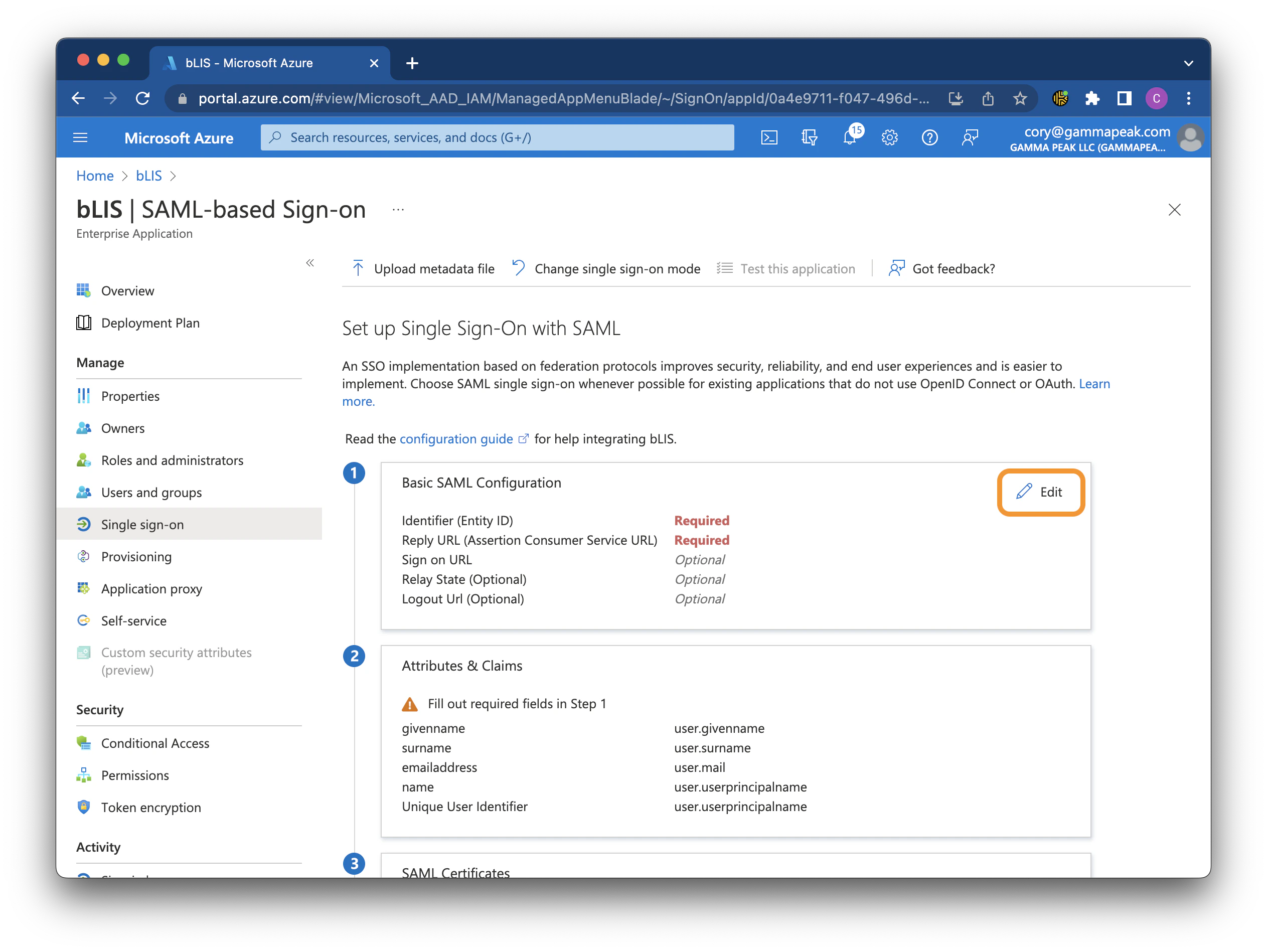
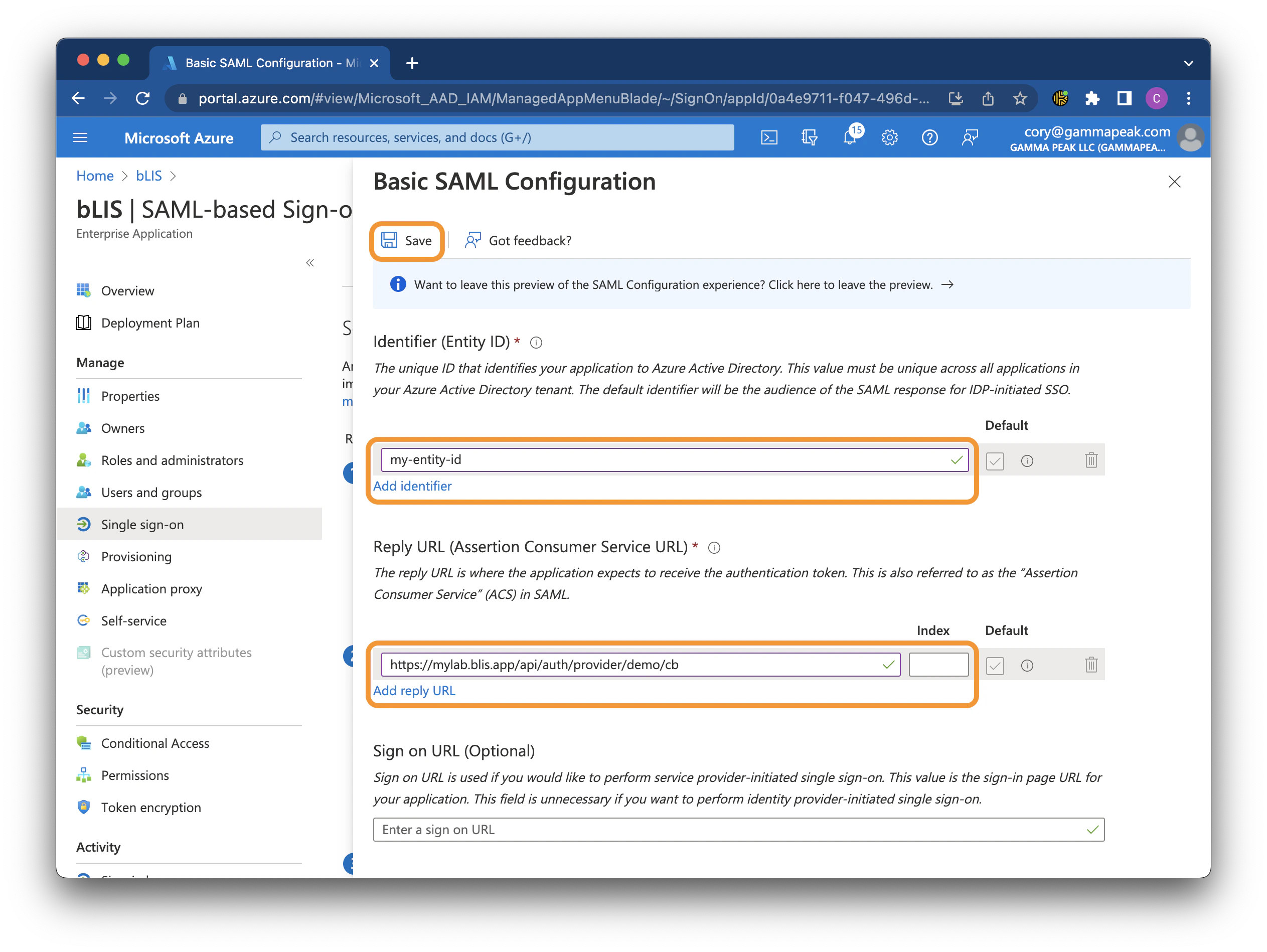
The following values will be provided by Gamma Peak:- Entity ID
- Reply URL
Outputs
After following the instructions below, you will provide the following values to Gamma Peak:- Metadata URL
- Certificate (Base64)
- Login URL
Instructions
1. Log in to Azure Portal
Log in to the Azure Active Directory Admin dashboard. Select Enterprise applications from the menu on the left.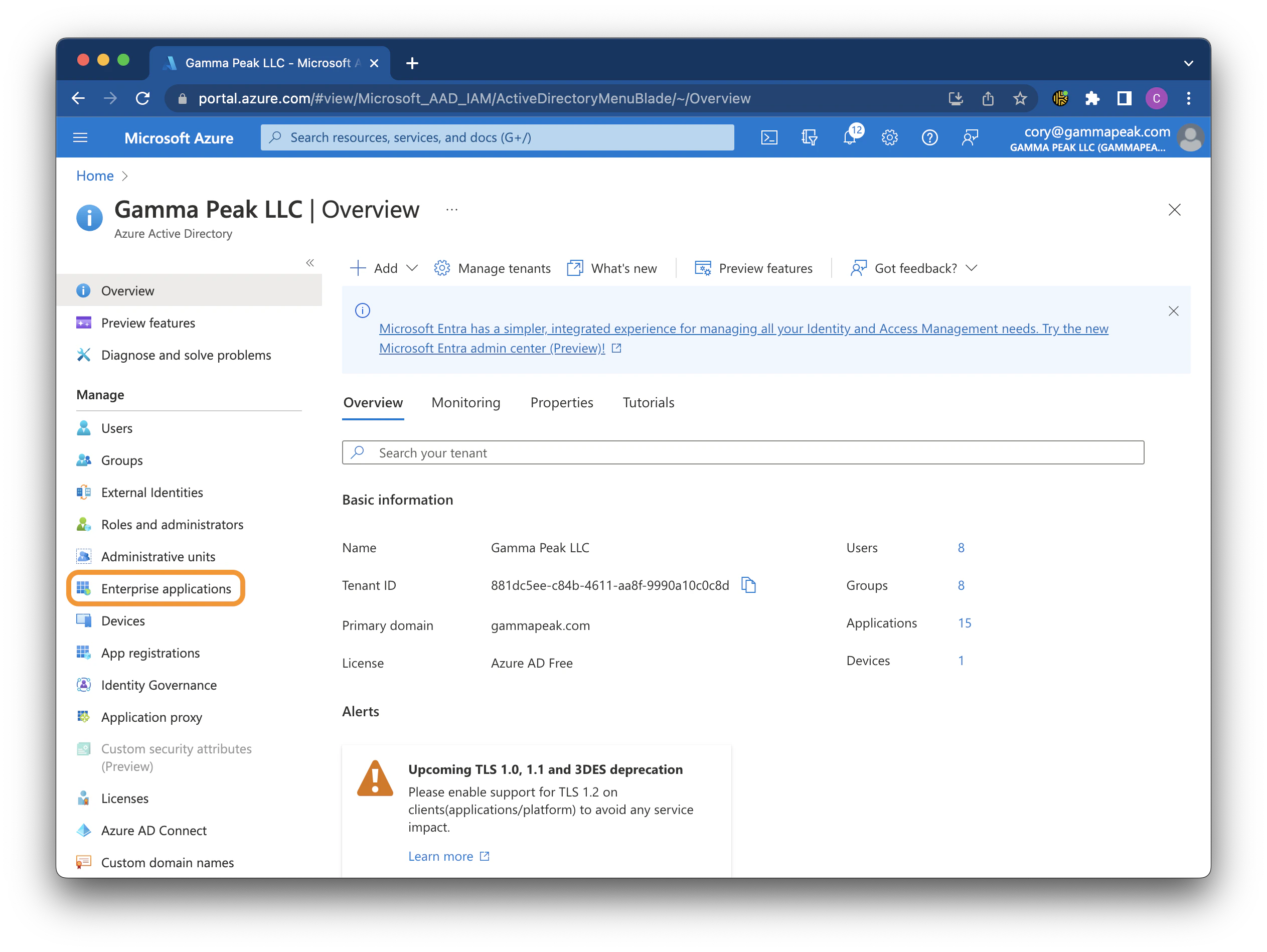
2. Create a new enterprise application
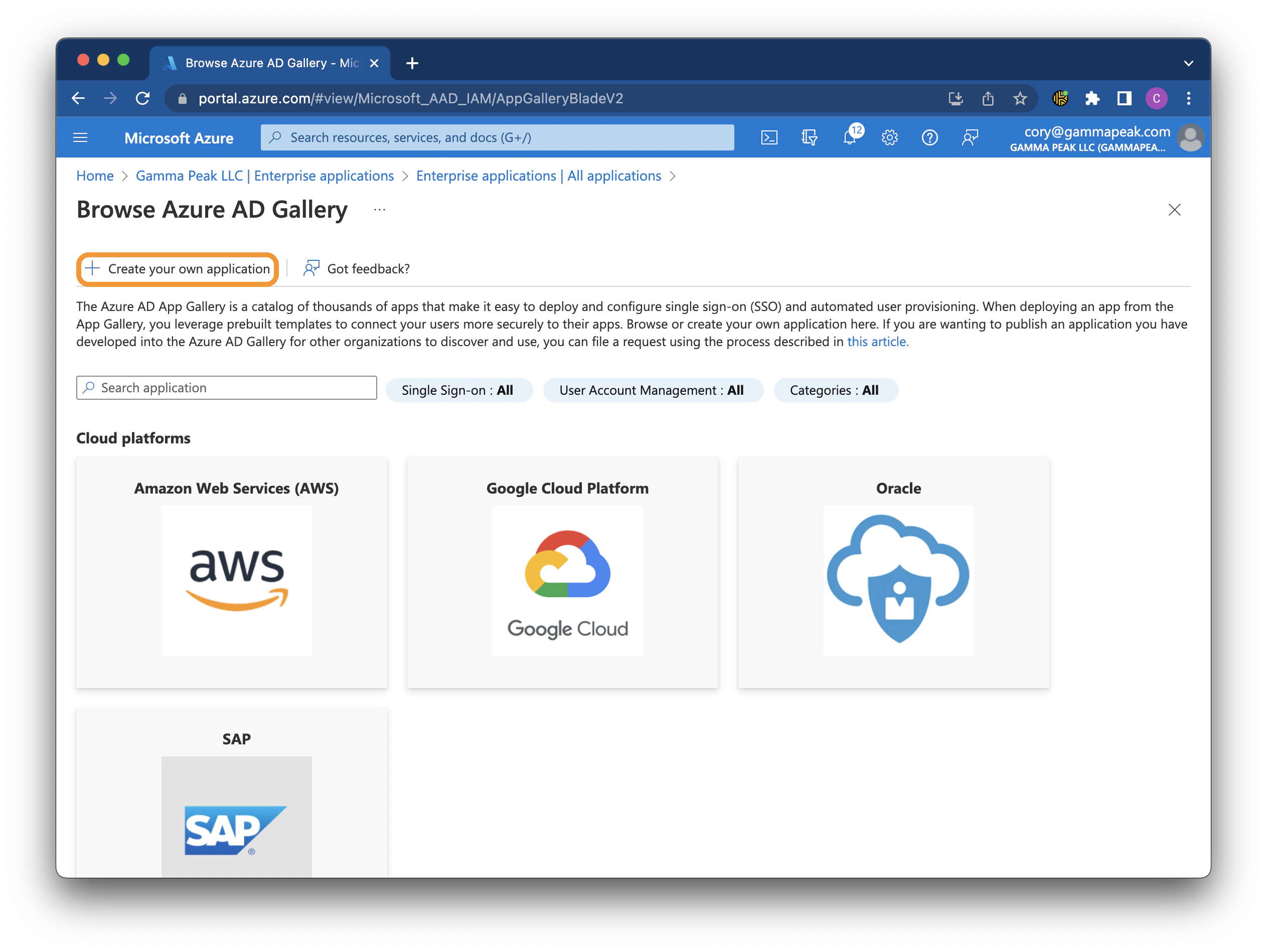
Click New application, then click Create your own application.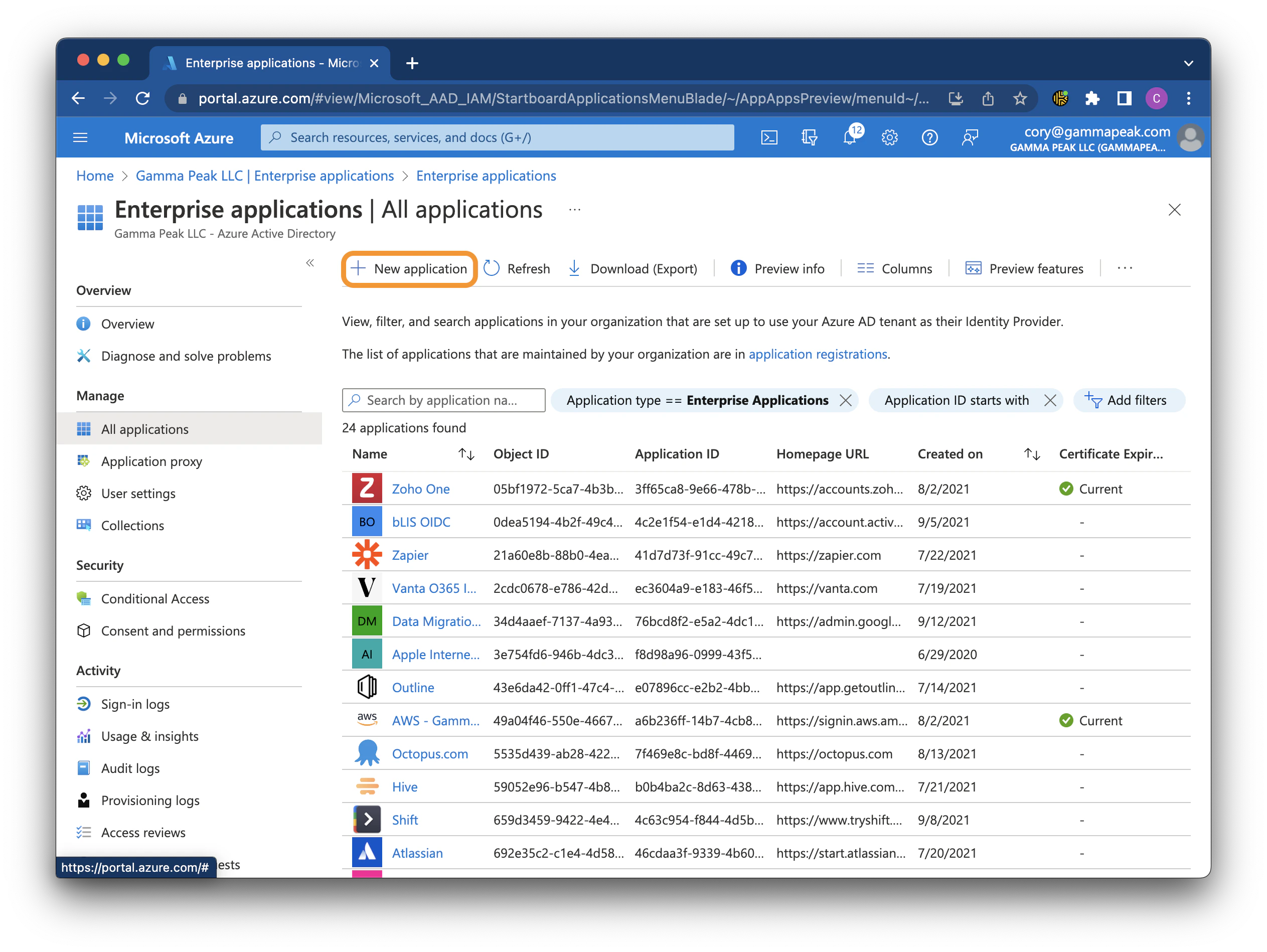
bLIS) and click Create.
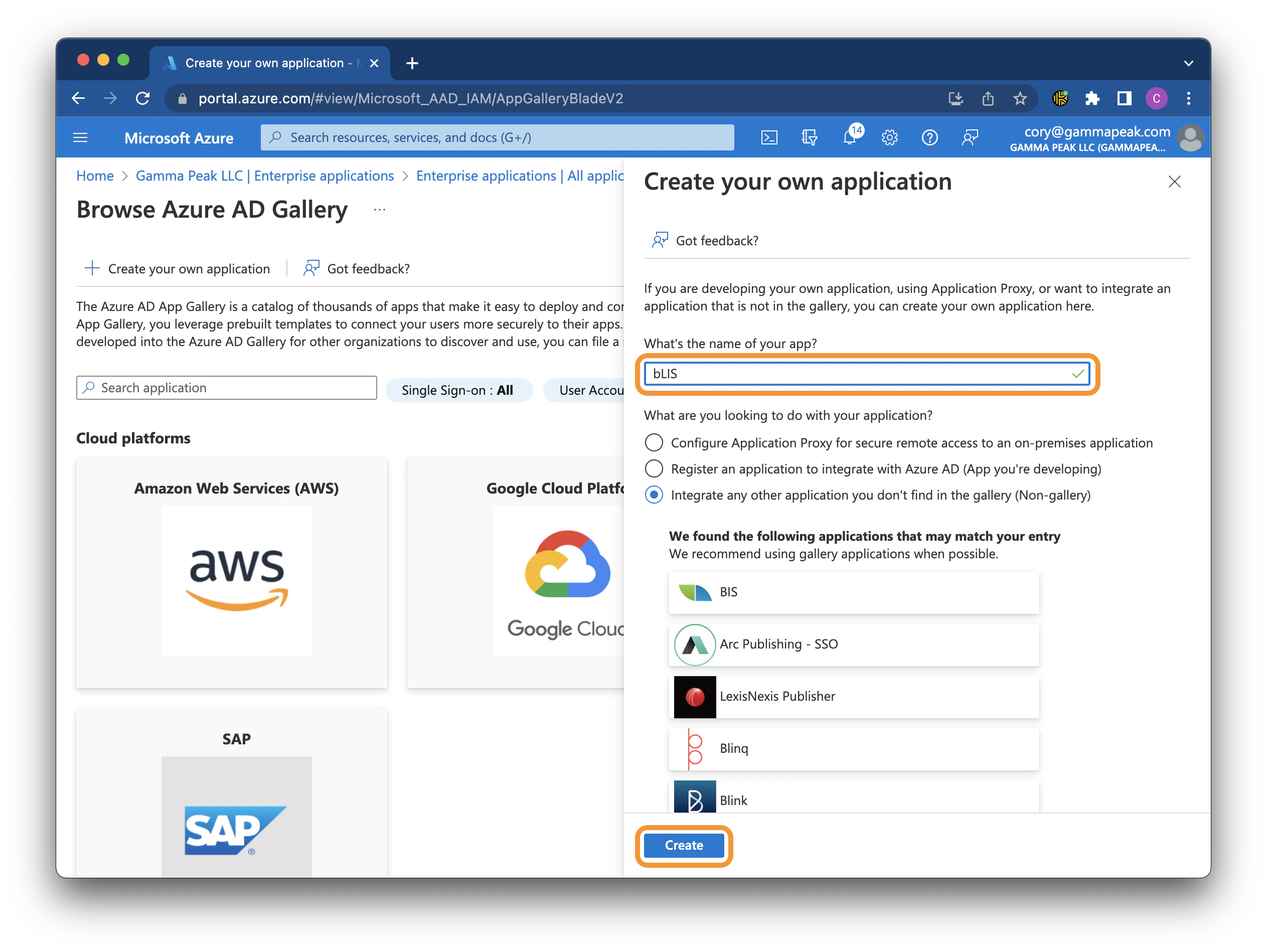
3. Configure SAML
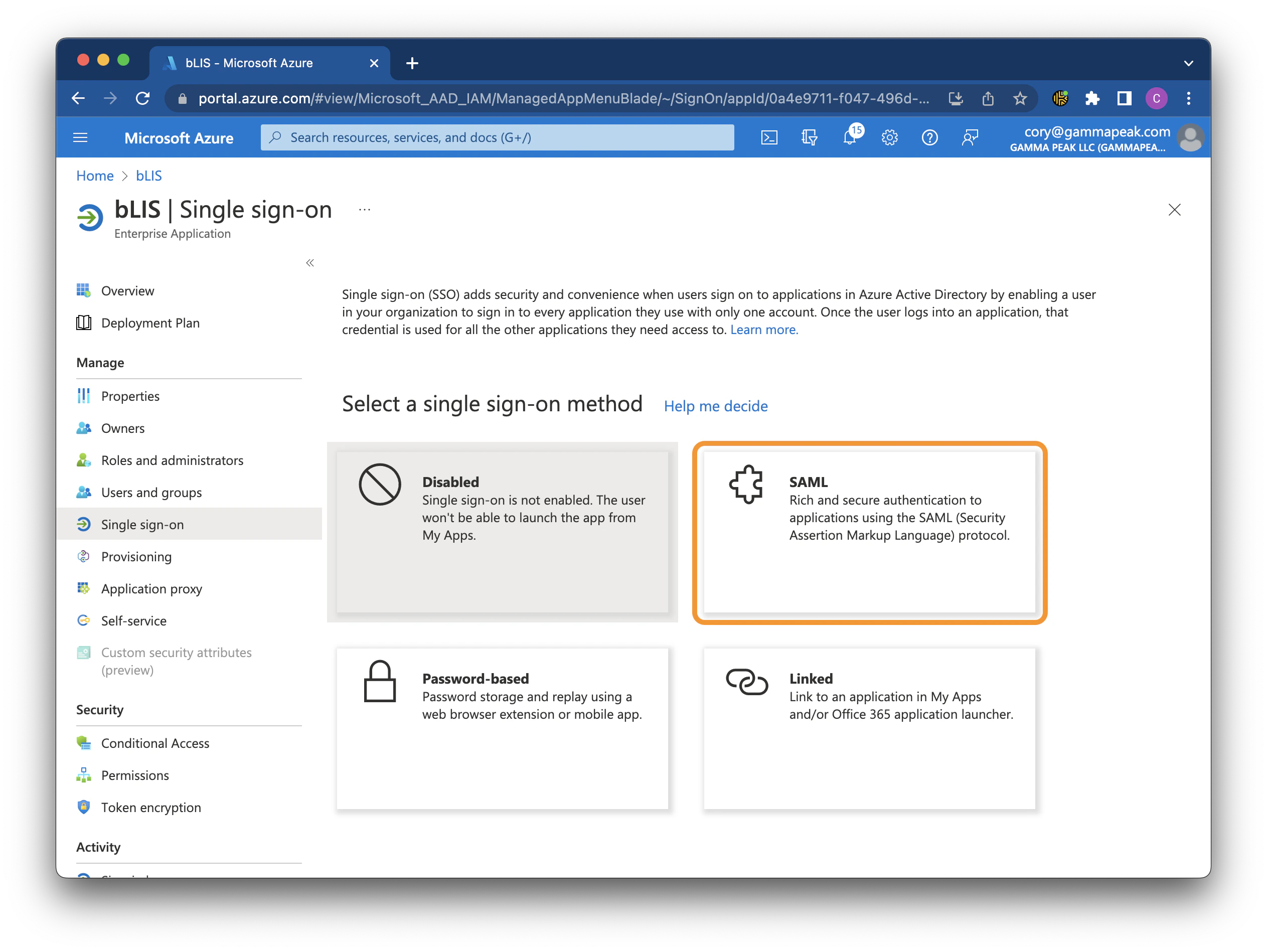
Once the application is created, click Single sign-on in the left menu, then click the SAML tile.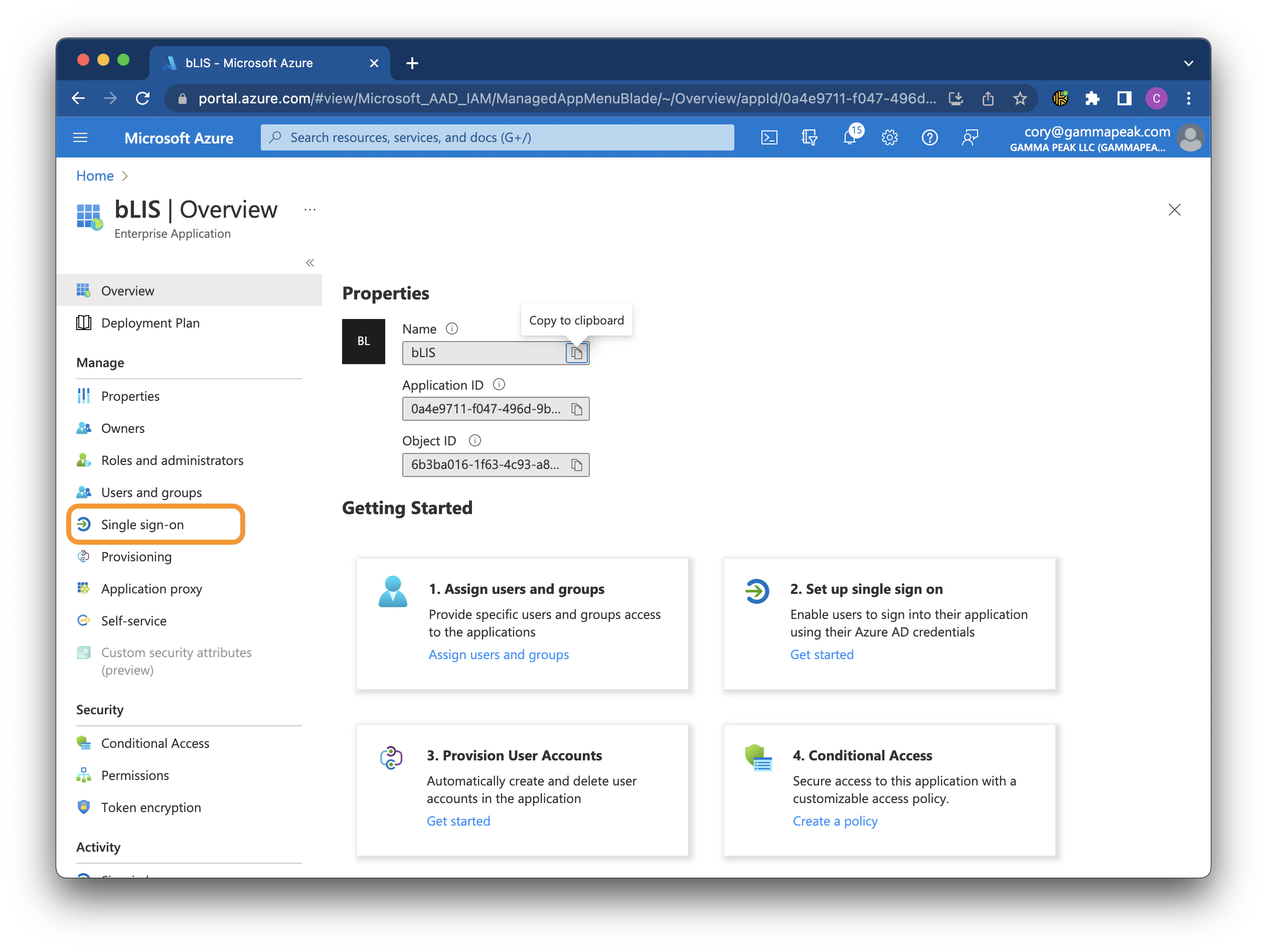
4. Copy and save outputs
Scroll down on the SAML configuration page to locate the output values. Metadata URL — In the SAML Signing Certificate section, locate the App Federation Metadata Url. Copy and save this value.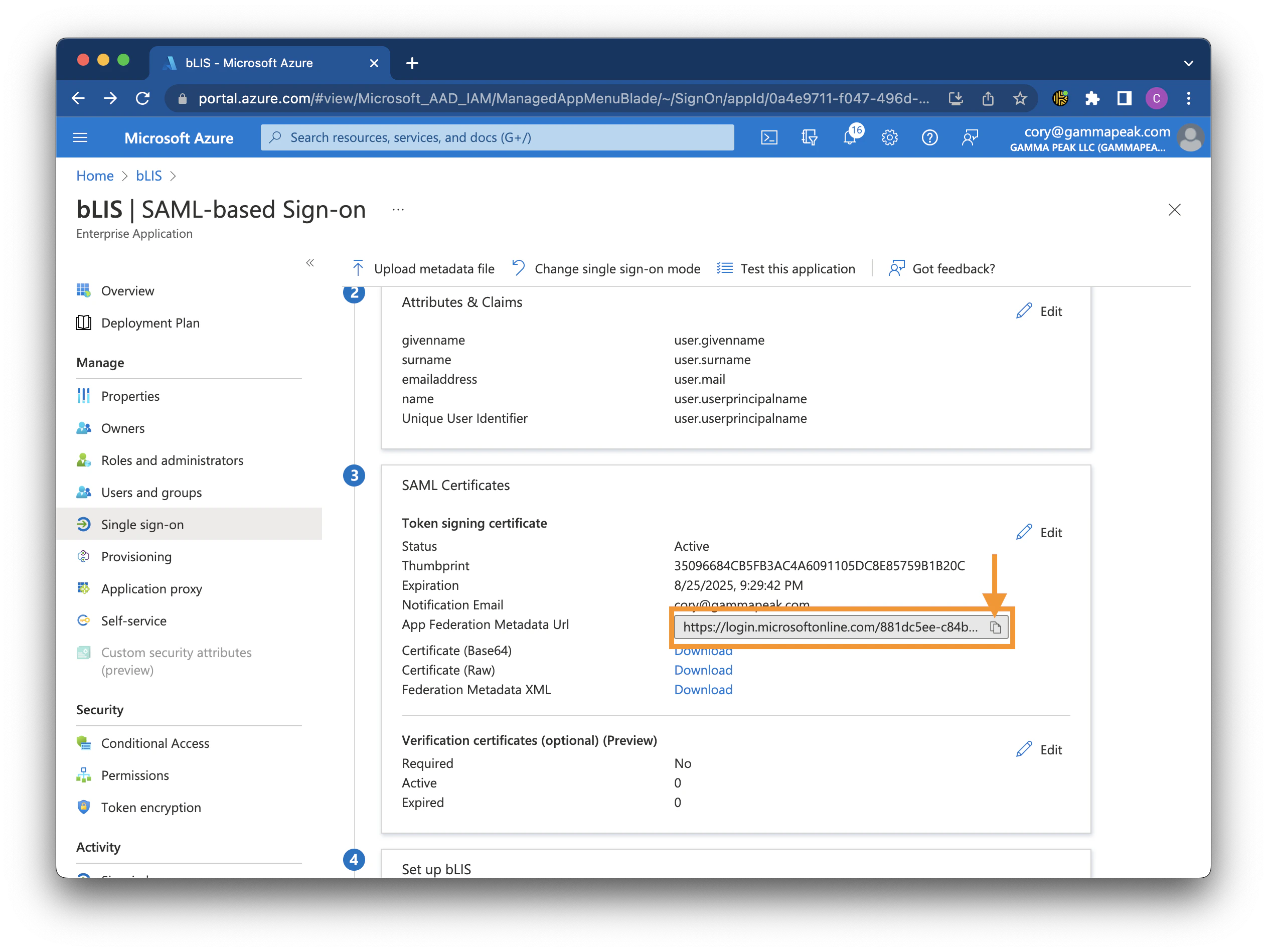
Output: Metadata URL
.cer file.
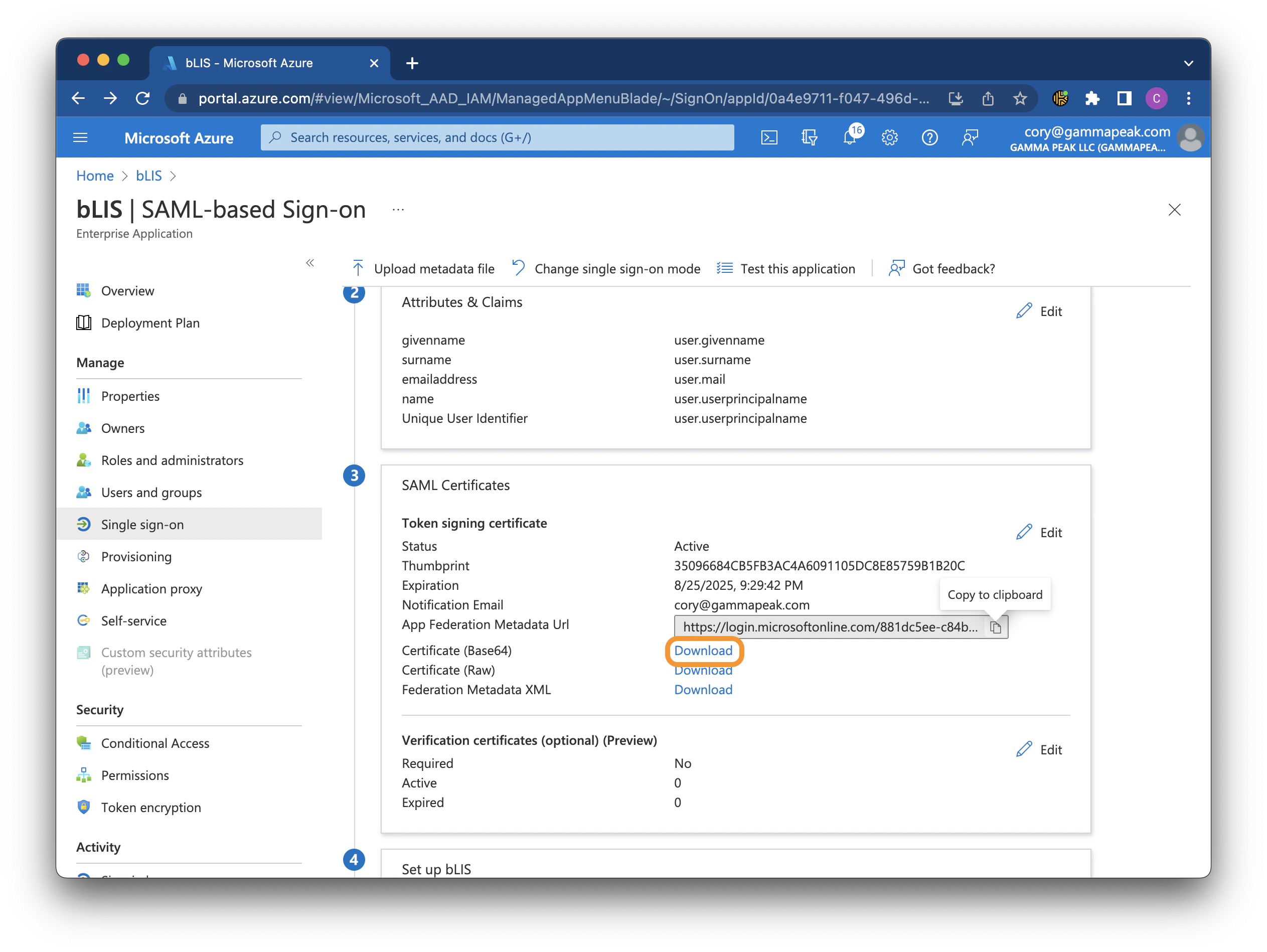
Output: Certificate (Base64)
.cer file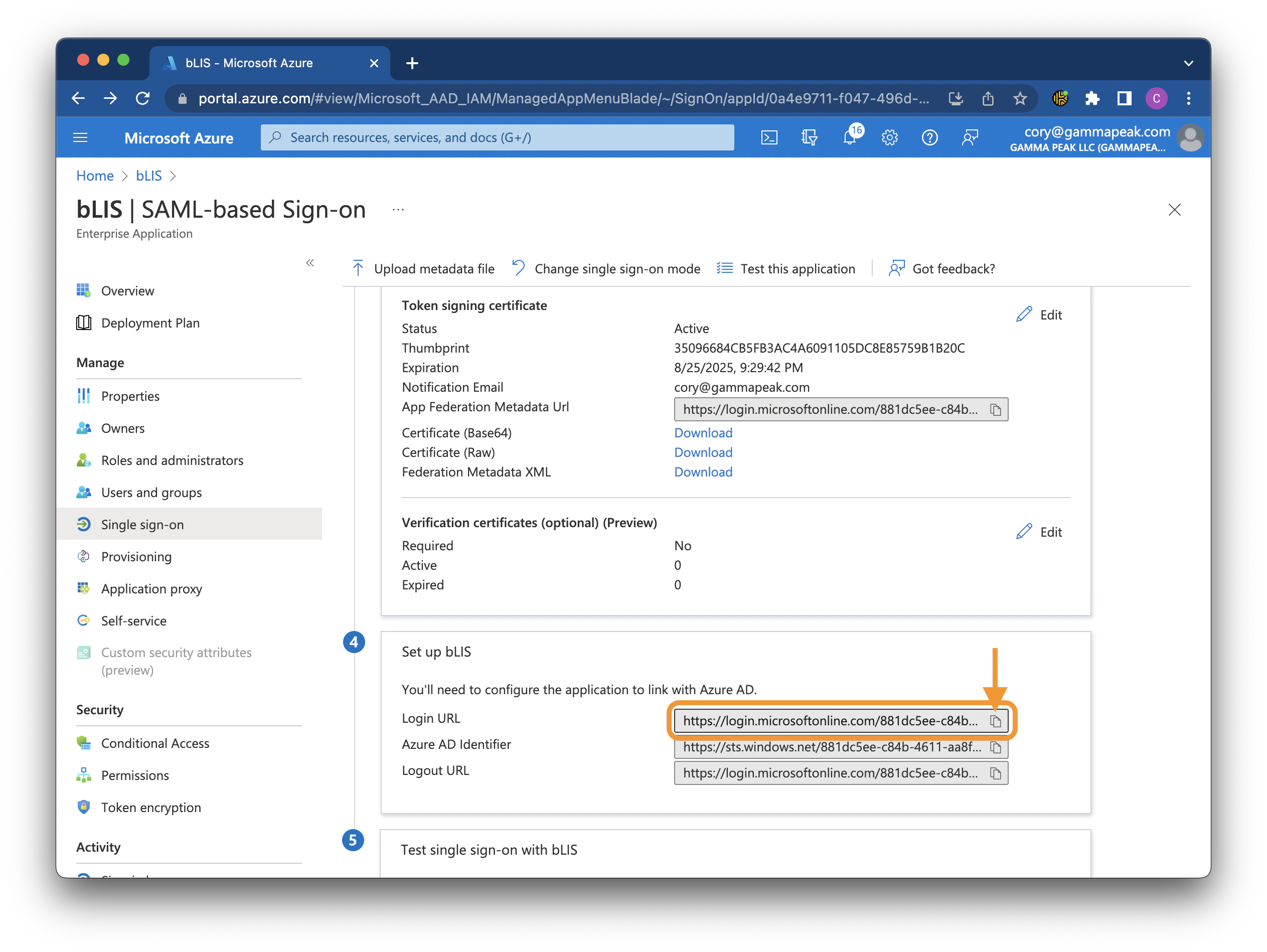
Output: Login URL
5. Send output values
Configuration in Azure Portal is now complete. Send the following output values to support@blis.app:- Metadata URL
- Certificate (Base64) — attach the downloaded
.cerfile - Login URL
For questions or support, please reach out to support@blis.app.